How to Sign a PDF on Your Phone in Under a Minute
Clear steps · Accurate results
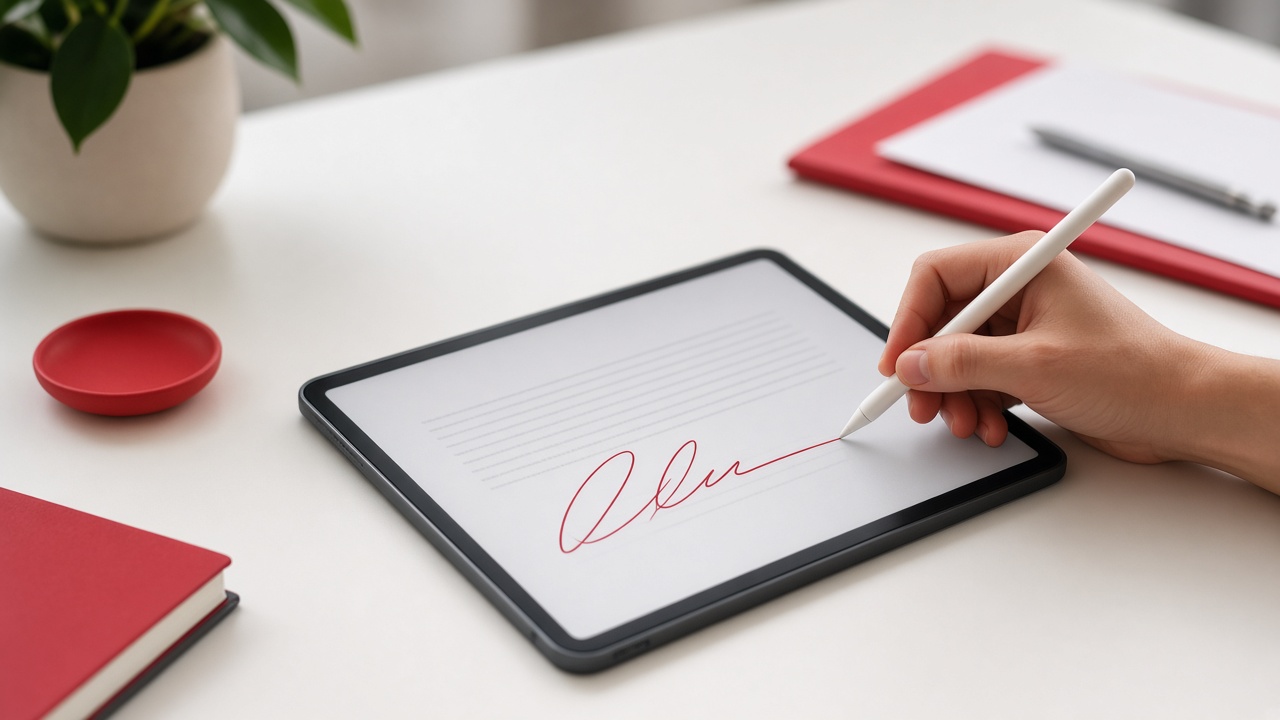
How to Sign a PDF on Your Phone in Under a Minute
A landlord emails a lease. A school wants a permission slip. HR sends an offer letter. Printing, signing, and scanning from a phone camera is the long way around.
You can open the PDF in the browser, draw a signature with your finger, place it on the page, and download a signed file — usually faster than finding a printer.
When a simple eSign is enough
Self-sign works for everyday paperwork you are allowed to sign yourself: rentals, school forms, internal approvals, many job offers. Multi-party certified workflows are a different product — you do not need them for a one-person signature on a clear form.
Sign on phone with PDFTrusted
Use Sign PDF in mobile Safari or Chrome.
- Open pdftrusted.com/sign-pdf and upload the file.
- Create a signature — draw with your finger, type your name, or upload a clean PNG.
- Drag the signature onto the line. Add initials or a date if the form asks.
- Tap Sign, download the file, and send it back from Mail or WhatsApp.
Keep the signature clean
Sign on a steady surface. Avoid photo backgrounds behind a handwritten scan — a solid white PNG looks more professional. Place the mark once; do not stamp every page unless the form requires it.
FAQ
Can I draw my signature with my finger?+
Yes. Draw on the screen, type a script-style name, or upload a PNG/JPG of your signature.
Do I need an account to sign?+
Not for basic self-sign within free daily uses. Download the signed PDF when you finish.
Will there be a watermark?+
No watermark on the signed download for normal free use. You get a clean PDF ready to email.
Is this the same as DocuSign for multiple parties?+
No. This is self-sign for documents you complete yourself. Requesting signatures from others is a separate workflow.